


Keywords Manager
Plugin
Lightroom Classic, Windows only
Bilingual: Spanish / English
V 3.1
(Coming soon for Mac as well)

Keywords Manager helps you get the most out of Lightroom Classic’s keywording system. Hierarchical keyword structures are one of Lightroom’s most powerful cataloging features, as they allow you to organize photos logically, distinguish between keywords with the same name based on their position within the hierarchy, and perform more precise searches and filtering. However, Lightroom provides very limited tools for managing keyword hierarchies. This plugin fills that gap by providing fast, intuitive tools to reorganize, clean up, and maintain your keyword structure, making large catalogs much easier to manage.
Key Features
Features for organizing the hierarchical keyword tree:
- Move keywords to any location within the hierarchical tree.
- Create new keywords exactly where they belong within the hierarchy.
- Edit keyword names, synonyms, and export options.
- Merge duplicate or similar keywords, automatically assigning all associated photos, synonyms, and child keywords to the keyword that is retained.
- Find similar keywords to detect duplicates and spelling errors, and then merge them.
- Delete unwanted keywords from the catalog without losing control over the cleanup process.
- View and explore the photos associated with any keyword.
- Move, add, or remove keyword assignments between photos directly from the plugin.
Features for generating collections based on keywords:
- From a selection of photos, generates collections by keyword to include those photos. A typical use case is after completing a photographic trip, when we have thousands of photos of, for example, different bird species to which we have added the corresponding keyword. Organizing our catalog and workflow becomes easier if we generate a collection for each of the bird species photographed.
- Unlike smart collections, generated collections allow you to sort photos, add or remove photos, and perform all the operations available for standard collections. Lightroom's smart collections have very limited filtering capabilities that can confuse keywords with similar names or keywords located in different parts of the keyword tree.
- Two ways to generate collections: flat structure (all new collections are created within the same collection set) or recreate the hierarchical structure (collections and collection sets are created to reproduce the same hierarchical relationships as the keywords).
- Allows you to select which keywords to generate an associated collection for.
- Allows you to update the contents of previously generated collections.
Functions for assigning keywords to photographs:
- A much more convenient way to assign keywords than Lightroom's.
- Enter either the keyword name or a synonym.
- Quick searches and suggestions as you type.
Functions for finding duplicate keywords:
- Finds potentially duplicate keywords, whether due to typos or duplicates in different parts of the keyword tree.
- Busca también si el nombre de un keyword es semenjante al sinónimo de otro keywords.
- Displays a panel for merging duplicates, where you choose which keyword to keep and which ones will be merged into it. Photos and child keywords are merged, and the synonyms are consolidated.
Keywords Manager: keyword organizer
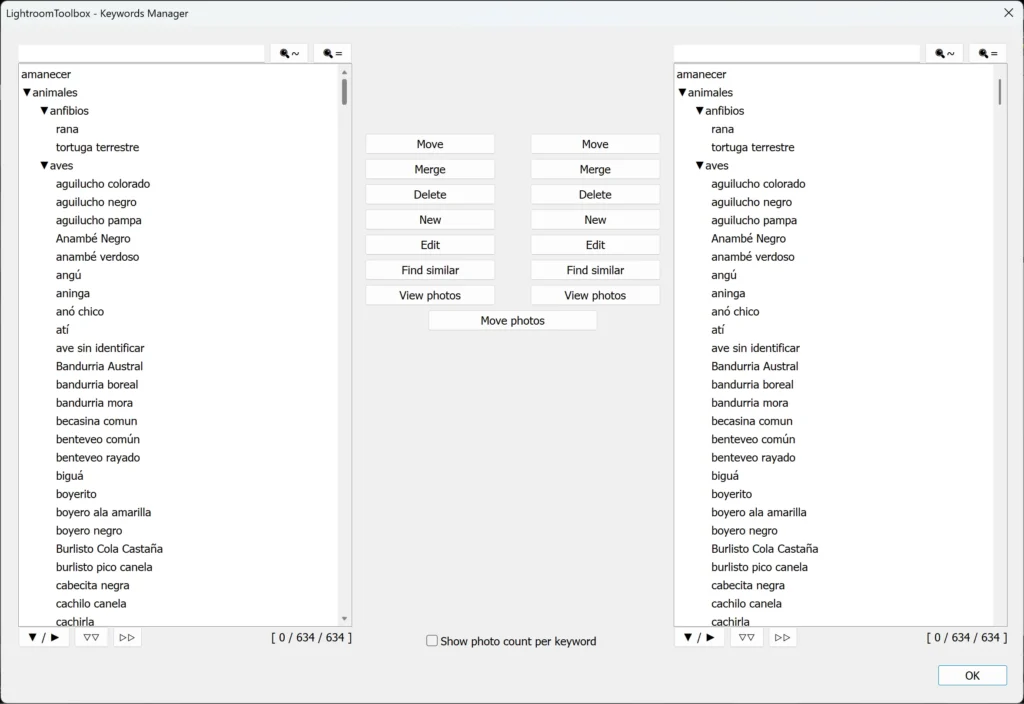
This plugin module is organized as a two-panel explorer, with the keyword structure displayed in each panel. For example, the user can select the keywords they want to move in one panel and the destination keyword in the other, then click MOVE to make the selected keywords subkeywords of the destination keyword. Alternatively, by selecting MERGE, all photos assigned to the keywords selected in the first panel will also be assigned to the keyword in the second panel, and the keywords selected in the first panel will be deleted. This is particularly useful when several keywords with similar names or typos have been created, for example, “birds”, “bird”, “birdds”, and you want to consolidate them into a single keyword, “bird”. The plugin also allows you to select a keyword in one panel and automatically select similarly named keywords in the other. Continuing with the same example, you can select “birds” in one panel and click FIND SIMILAR, and the plugin will select “bird” and “birds” in the other panel, allowing you to then merge them or perform any other action you choose.
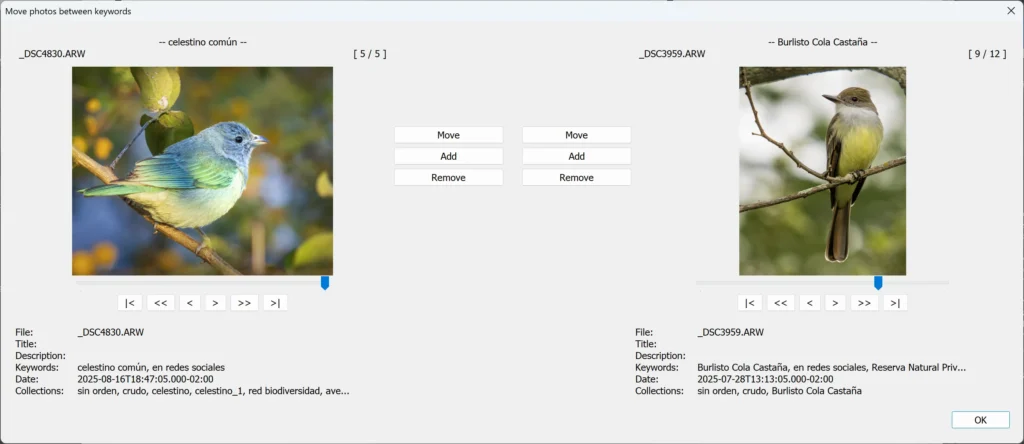
It is also possible to select two keywords and open a panel that allows you to explore the photos associated with each one, again in a two-pane window. From there, you can move or add photos from one keyword to the other, or remove the keyword from selected photos. In the example shown, the left pane displays the photos associated with the keyword… “atardecer” y a la dereche se muestran las fotos correspondientes al keyword “aves”.
Enhanced module for assigning keywords to photos
This module addresses the limitations of Lightroom’s native method for assigning keywords to photos, adding new features and making the process more convenient.
The keyword system is very powerful, and each keyword can have synonyms assigned to it. Natively, these synonyms are only used to add them as metadata when exporting. However, when organizing our photos and assigning keywords, we must do so using the keyword name, without being able to search by its synonyms. This forces us to remember, for example, that we registered our keyword as “yaguareté” and not “jaguar.”
The plugin includes a module for assigning keywords to photos in which keywords can be entered either by their name or by their synonyms. Lightroom’s native module allows you to start typing the name of a keyword (but not its synonyms) and offers autocomplete suggestions. It also has the limitation that you must start typing the first word of the keyword; you cannot search using other words.
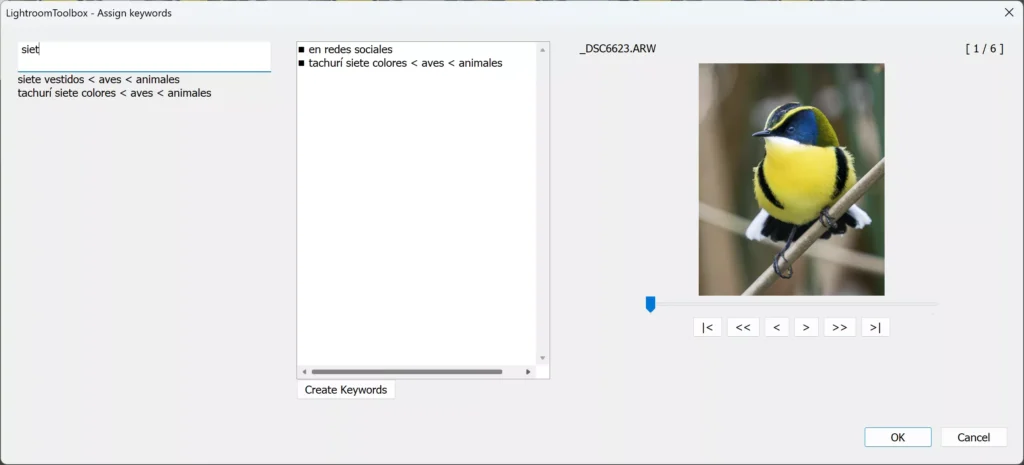
If we have the keyword “Tachurí siete colores”, Lightroom only offers autocomplete suggestions if we start typing “tachurí”. In the plugin module, you can start typing any of the words and the suggestion will appear. For example, typing “siet” will show suggestions for both “Tachurí siete colores” and “Siete vestidos.”
You can click the desired suggestion to select and assign it, or you can add the beginning of another word so that only one suggestion remains. For example, typing “siet tach” eliminates the ambiguity, and you only need to press Enter to select it.
You can also search using keyword hierarchies. Suppose we have several shorebird keywords within the keyword hierarchy “shorebirds < birds < animals” and we do not remember the name of the bird whose keyword we want to assign. We enter “< play < aves” and the plugin will show suggestions for the shorebirds. We could also enter “< play < < anim”, searching by the beginning of a word at each level. An empty level means “anything.”
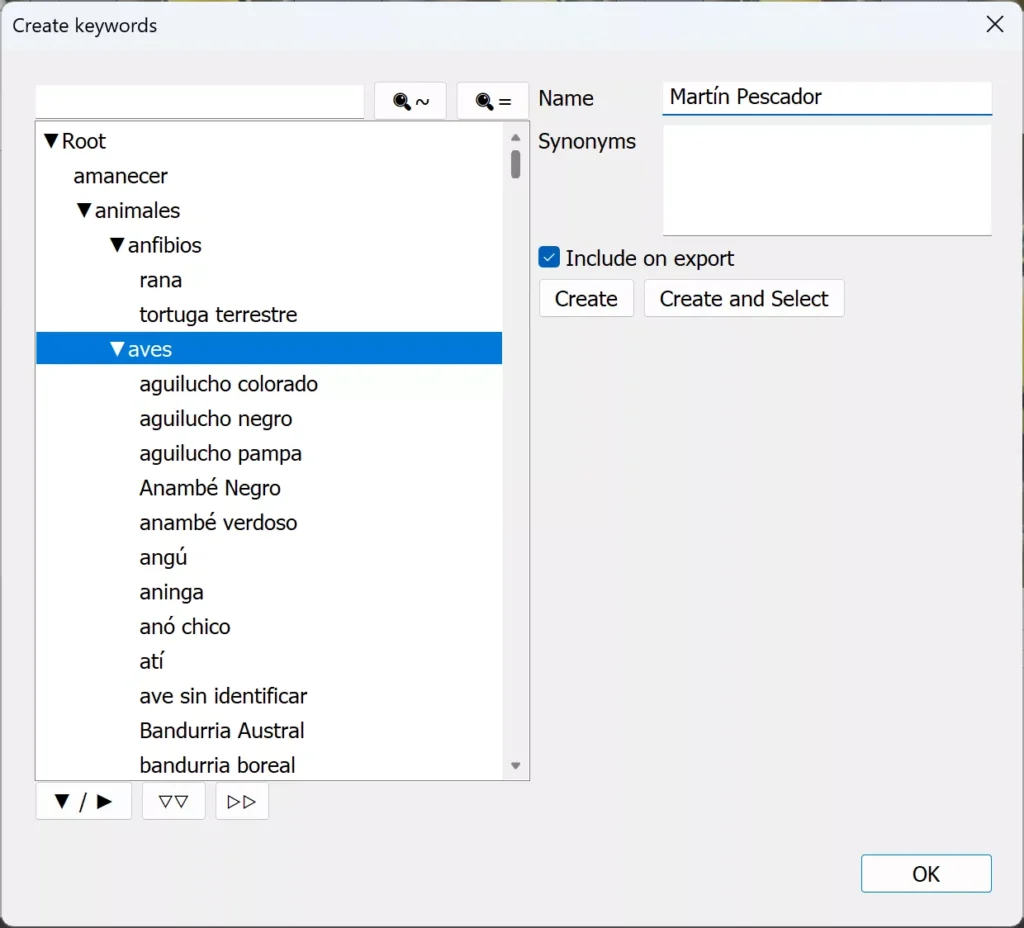
If you need to create a new keyword, the same module provides access to a panel for creating keywords, allowing you to choose its place within the hierarchy and add synonyms.
Organize photos into collections by keyword
After a trip, you may come home with thousands of photos. Selecting and editing them becomes much easier when they are neatly organized into collections based on the keywords you assigned. Simply add the appropriate keywords to your photos, and the plugin quickly builds all the corresponding collections for you. Just choose which keywords should have their own collection and where to create them.

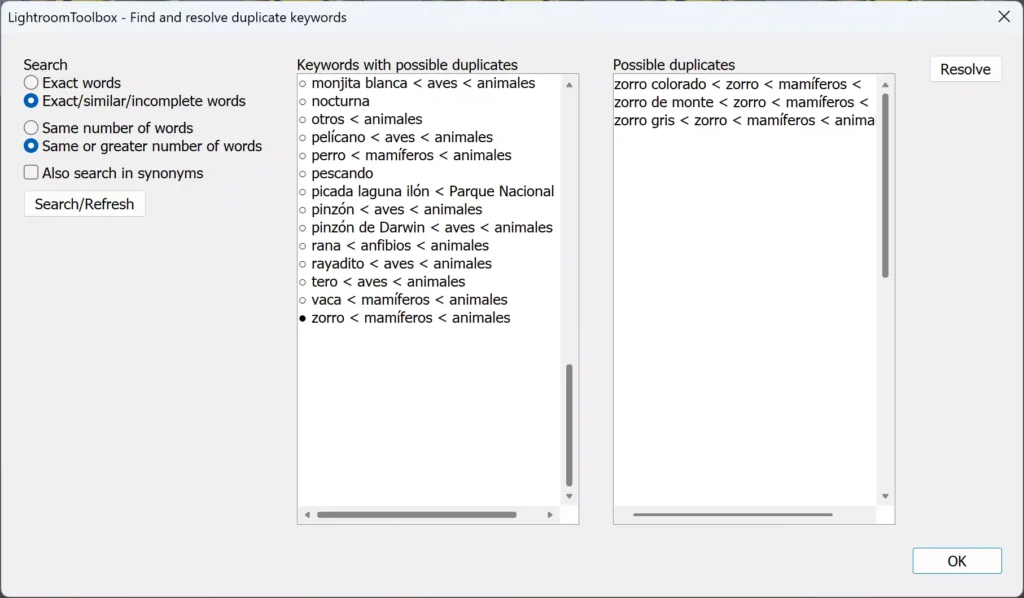
Find and merge duplicate keywords
When assigning keywords, it is very common to make small typing mistakes or to create the same keywords in different parts of the hierarchy. The keyword “cat” under “animals” (“cat < animals”) is not the same as the keyword “cat” under “mammals,” which is itself under “animals” (“cat < mammals < animals”). It is useful to identify these duplicates and merge them in order to keep our keyword tree organized and make it easier to find our photos. There may also be typing mistakes, such as having another keyword called “catt”, or we may have created a keyword with a very different name, such as “a feline”, but with “cat” in its list of synonyms.
This plugin module allows you to find these situations and resolve them. It searches for keywords with potential duplicates, allows you to examine them (hovering over one displays details about its name and synonyms), and then resolve the conflict. When resolving the conflict, you choose which keyword will remain, which ones will be merged into it (their photos and child keywords are transferred to it), and which synonyms it will have.
Keyboard shortcuts
The plugin allows you to configure keyboard shortcuts to access its modules. These shortcuts are optional. The plugin’s keyboard shortcuts take priority over Lightroom’s native shortcuts. This makes it possible, for example, to assign Ctrl+K to the keyword assignment module, so that it opens the plugin’s module instead of Lightroom’s native one.